4 min
Shared transitions, a native stack hop or a one-screen fake
Tap a photo and it becomes the header of the next screen. You can do it across two real screens on the native stack, or fake it inside one. Here is when to pick each.
You tap a photo in a grid. The photo grows, slides up, and becomes the header of the detail screen. Nothing cuts. That handoff between two screens is the whole effect, and it is harder to build than it looks.
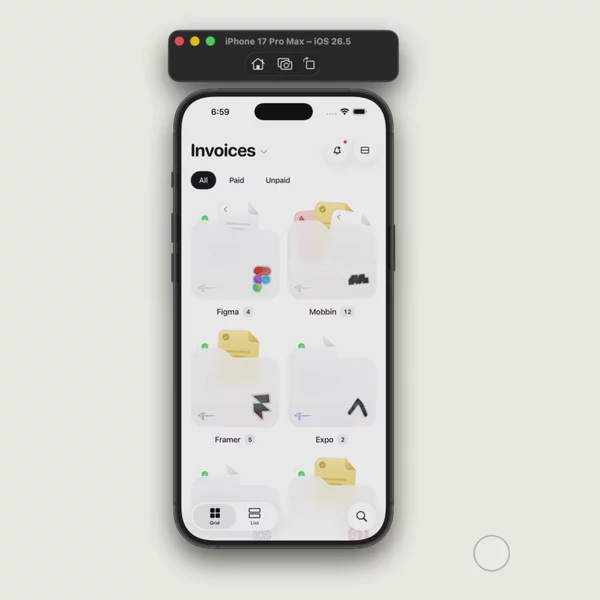
Popover matched transitions
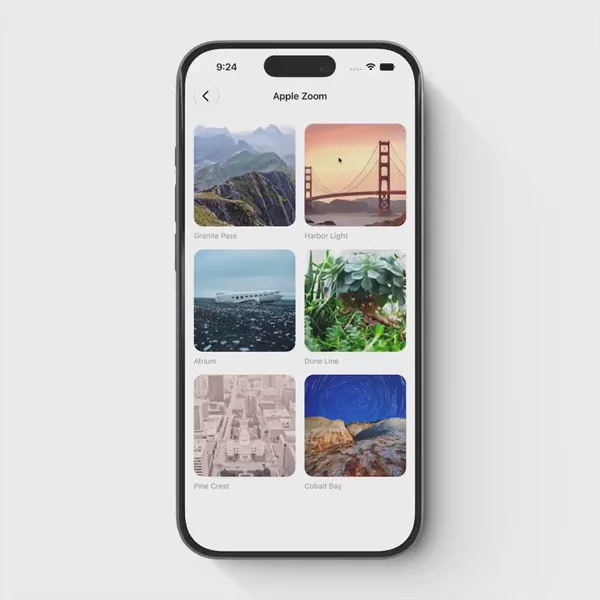
Apple zoom shared element transition
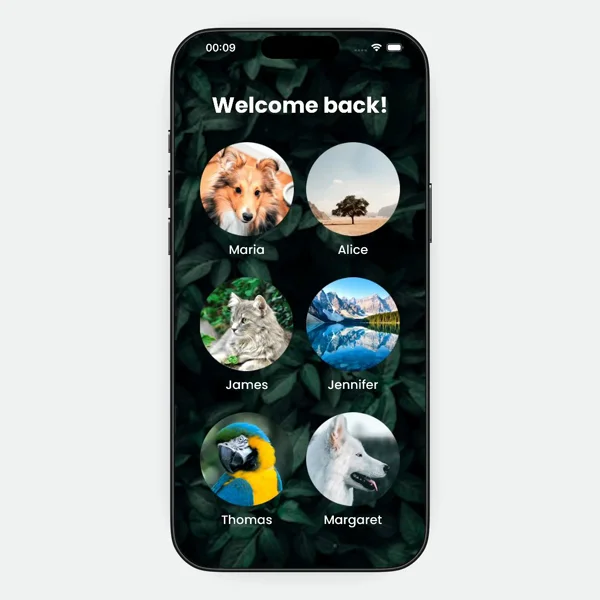
Profile photo cards
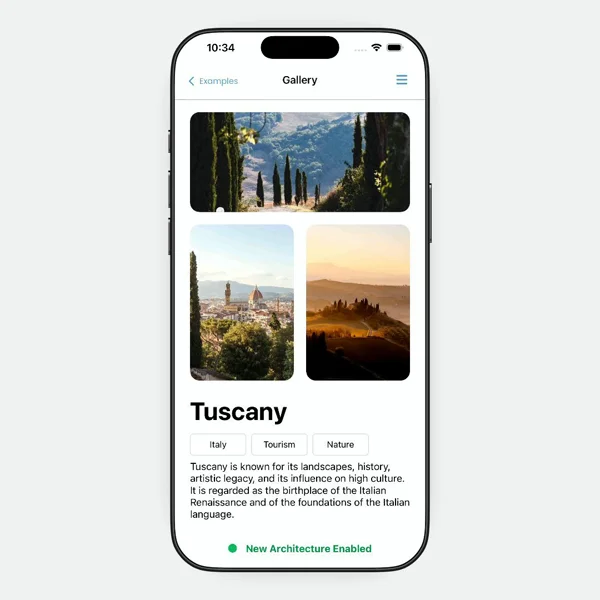
Gallery photo expand




A shared element transition is a third view, not a moving one
The element never travels. In Reanimated, you give a view on screen A and a view on screen B the same sharedTransitionTag. When the top screen of the stack changes, Reanimated finds the matching pair, hides both, and draws a third view over the hierarchy. That copy starts as the source and animates into the target. Then it disappears, and the originals come back.
// Grid screen
<Animated.Image sharedTransitionTag={`photo-${id}`} source={{ uri }} style={styles.thumb} />

// Detail screen
<Animated.Image sharedTransitionTag={`photo-${id}`} source={{ uri }} style={styles.hero} />
The tag has to be unique per item and identical on both screens. Reuse one tag across a whole list and Reanimated cannot tell which thumbnail you tapped.
By default it animates width, height, originX, originY, transform, backgroundColor, and opacity over 500 ms with withTiming. You can change the duration or switch to a spring through the SharedTransition builder. You cannot write a fully custom animation function yet.
On iOS, a swipe back or the system back button runs a progress-based version instead, so the copy follows your finger and the gesture can be cancelled.
Path one: the real cross-screen hop
This is the version people mean when they search for a react native shared element transition. In Reanimated 4 it is experimental and behind a feature flag. The docs say it is not recommended for production yet.
The limits are specific:
- Native stack only. Tabs are not supported. A tab navigator on the route can mean no animation at all.
- Native modals misbehave on iOS. With
transparentModal, the modal covers the shared element. - No web. Android and iOS only.
- iOS headers can shift it. The docs note vertical positioning issues tied to header height.
The flag is ENABLE_SHARED_ELEMENT_TRANSITIONS, a static flag set in package.json under reanimated.staticFeatureFlags, then a native rebuild. Static flags cannot be changed in Expo Go, so an Expo app needs a prebuild. The flag also conflicts with USE_LEGACY_LAYOUT_ANIMATIONS_PROXY. You cannot run both.
If your routes use Expo Router, the stack you want is the native one, since that is the only navigator Reanimated supports here. The navigation post covers how that stack sits next to tabs and drawers.
Path two: fake it inside one screen
The other fork skips navigation. The grid and the detail live on one screen. The tapped card expands into the detail view with a layout animation, and the grid fades or slides away around it.
You lose the real route. Deep links, the back stack, and the system back gesture become your problem, not the navigator's. In exchange, nothing depends on an experimental flag, and the element really is one view, so there is no copy to drift out of position.
The choice comes down to what owns the screen. If the detail needs its own URL and a real back gesture, take path one and accept the flag and the native stack. If the expansion is a moment inside one flow, like a card opening in a feed, path two ships today.
Both paths are hard to judge from a still frame
What separates a good one from a bad one is the frame where the copy lands. A size jump, a corner radius that snaps, a header that shoves the element down a few points. You only see that in motion.
Watch the Apple zoom shared element transition for the landing frame.
Then watch the iOS home app opening for the same handoff starting from a grid of icons.
Shared transitions sit with parallax, shimmer, and stagger in the patterns group, and the patterns post explains why the motion's name is how I file it.
Decide what owns the screen, then watch the landing
Pick the path first, then compare only the blocks on that path. Slow the video down at the last few frames, because that is where the copy either settles or jumps. Both kinds sit together in the Shared Transition filter.